Pixverse AI Review 2026: Multi-Shot Video Generation with Native Audio
Pixverse AI logo
Pixverse AI — Honest Deep Dive 2026

Pixverse AI

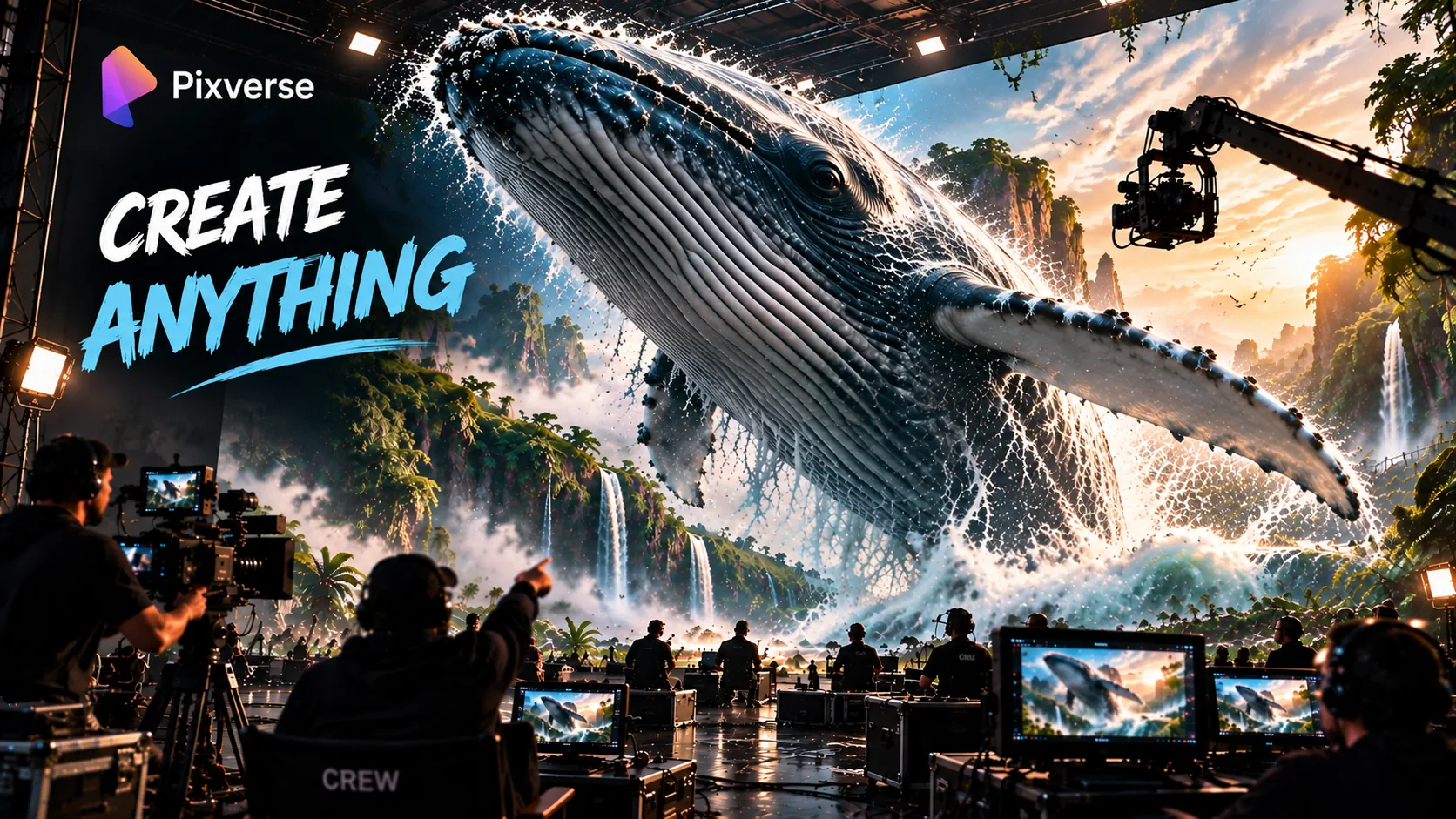
Type one prompt, get a directed sequence back — 15 seconds at 1080p, audio baked in, camera moves you actually name yourself. That's the pitch, and for the most part it holds up.

Multi-Shot Engine
Native Audio
20+ Camera Controls
1080p · 15s
What is Pixverse AI in 2026?

Pixverse AI's V6 model takes one prompt and turns it into something closer to a directed sequence than a single generated clip — camera movement, character performance, and audio all handled together instead of separately. Where most tools generate a scene at a time, here one prompt can lay out several shots, and the Multi-Shot engine renders the whole run in a single pass, keeping the character, the room, and the lighting from drifting between cuts. Audio comes out of the same process: dialogue, ambient noise, and effects, with lip sync that works across 20+ languages, so you're not bouncing over to a separate tool just to get sound. Camera control is the other half of it — over 20 named moves (pans, tilts, tracking shots, zooms, perspective shifts) that you can actually specify, rather than trying to talk the model into a "dramatic" shot and hoping for the best. It's available on web, iOS, and Android, and by 2026 it's become one of the more complete corners of AI video generation rather than just another clip generator.

Pixverse AI in Action: the C1 Model and Seedance 2.0 in 4K

Two official demos worth watching before you read any further: C1, built specifically for film production work, and Seedance 2.0, which pushes Pixverse into native 4K.

PixVerse C1 — First Model Built for Film Production

Action that holds together, storyboards turned straight into video, and reference-guided consistency — 1080p, 15 seconds, audio included. Live now on PixVerse Web and through the API.

Seedance 2.0 4K — Cinematic Terror

Text prompt in, 4K video out, with motion blur, kicked-up dust, and real depth of field. This is the closest Pixverse gets to production-ready output straight out of the gate.

What Pixverse AI Actually Is in 2026

Most AI video tools, including earlier versions of Pixverse itself, get judged on one thing: does this five-second clip look good. Pixverse AI's V6 model starts from a different question. The hard part isn't really a single clip anymore — it's whether the character, the room, and the lighting still match up three shots later.

The multi-shot engine is what actually makes that possible. Describe a scene with several camera angles in one prompt — wide, medium, close-up — and Pixverse renders the whole sequence in a single pass, with the environment and the subject staying aligned across each cut. That's the real shift here: from generating clips to generating scenes.

On top of that sits native audio synthesis. Dialogue, ambient sound, and effects generate alongside the video itself, so you skip the separate text-to-speech or sound-design pass most tools still require. And the 20-plus named camera controls mean you're giving the model an actual instruction — "tracking shot," "push-in" — instead of a vague adjective it has to interpret on its own.

  • Works on Web, iOS, and Android — generate from whichever device you've got open
  • V6 introduced single-pass generation at 15 seconds, 1080p
  • Multi-shot engine holds environment and character steady across cuts
  • Native audio, including lip-synced dialogue outside English
  • 20+ named cinematic camera controls — actual moves, not vague adjectives

A clip is a moment. A scene is what happens once a few of them line up. Pixverse AI is built for the second thing.

Everything Pixverse AI Can Do

V6 leans on four things working together: multi-shot sequencing, native audio, precise camera control, and character performance. Here's what each one actually gets you.

🎬
Multi-Shot Engine

One prompt, a full sequence of connected angles — wide, medium, close-up — with the subject, environment, and lighting holding steady across every cut. No re-prompting between shots.

See it in action →
🔊
Native Audio Synthesis

Dialogue, ambient noise, and effects come out of the same pass as the video, lip sync included, even outside English. No separate audio step tacked on afterward.

Learn more →
🎥
20+ Cinematic Camera Controls

Tracking shots, perspective shifts, environmental reveals, push-ins, and orbits — named moves you direct rather than describe. Holds up well even on extreme angles and fast motion.

How to use them →
🎭
Character Performance

Expression and body language carry through a scene change instead of resetting to neutral the moment the shot cuts. Small thing on paper, but it's the difference between a clip and a scene.

Learn about Character Reference →
📐
8 Aspect Ratio Options

Vertical for social, widescreen for everything else, all from the same generation — TikTok, Reels, YouTube Shorts, and 16:9 covered without re-rendering from scratch.

📱
Web, iOS & Android

Generation happens on the web; the iOS and Android apps are mainly for reviewing and managing what you've made on the go.

Try it free →

Edit With Text: Changing a Video by Describing the Change

Edit With Text does roughly what it sounds like — you describe the change in plain language instead of digging into a timeline, and the AI makes it.

A few things it handles:

  • Change a character's expression or action
  • Modify the lighting or mood of a scene
  • Replace background elements
  • Adjust camera angles or movements
  • Add or remove objects from the scene

It lowers the floor for anyone without traditional video editing skills, without really taking anything away from people who already have them.

Say what you want changed. It changes it. That's more or less the whole feature.

The Pixverse AI Agent

The Agent takes a brief and runs with it — turning it into a full video sequence without you writing a separate prompt for every shot. You describe where you want to end up, and it handles the steps in between.

What the Agent can do:

  • Convert a script into a multi-shot video sequence
  • Generate consistent characters across multiple scenes
  • Apply consistent branding and style throughout
  • Optimize prompts for better output quality
  • Batch generate videos from a single template

For anyone producing at real volume — social media managers, agencies, content teams — this is what turns Pixverse AI from a generation tool into something closer to a production system.

Hand it a brief, and the Agent takes it from there.

Keeping the Same Character Across Every Scene

Character Reference solves a specific annoyance: re-rolling a generation and getting a character who doesn't quite look like the one from the last shot. Lock the appearance in once, and reuse it from there.

How Character Reference works:

  • Upload a reference image of your character
  • Pixverse AI extracts key features — face, body, clothing
  • Apply the reference across multiple prompts and scenes
  • The character appears consistently in every generation

Useful for anything with a recurring character — storytelling, branded content, or a mascot that needs to look the same in shot four as it did in shot one.

One reference image, and the character stays put across however many scenes you need.

Your First Session: Think in Shot Lists, Not Prompts

The first thing you notice is the vocabulary shift. You're not writing one prompt per clip and hoping the camera angle lands — Pixverse AI wants you to describe a scene roughly the way a director would brief a cinematographer: the subject, the setting, the camera move, the mood, and the dialogue or sound, if you need it.

What a first session with Pixverse AI surfaces
  • 15-second single-pass generation at 1080p, stable from the first frame to the last
  • The multi-shot engine cutting between wide, medium, and close-up angles while keeping the environment aligned
  • Native audio generated in the same pass — dialogue, ambient sound, and effects, with lip-sync that holds even in non-English languages
  • 20+ named camera controls — tracking shots, perspective shifts, environmental reveals, push-ins, orbits
  • Character performance — facial expressions and body language — holding steady across scene changes rather than resetting to neutral

You end up spending that first session thinking in shots rather than prompts — describing a sequence instead of gambling on a single generation. Whether that vocabulary clicks depends a lot on how comfortable you already are talking in cinematic terms; if you are, Pixverse AI feels like it's speaking your language almost immediately.

How to Actually Use Pixverse AI

Five steps get you to your first multi-shot video. The model rewards prompts that are literal and physically specific — the more detail you give it about the scene, the camera move, and the sound, the better what comes back.

1
Step One — Sign Up & Get Credits
Create a free account and claim your starter credits.

Sign up at Pixverse AI — no card required. The free tier gives you enough credits to actually test multi-shot generation, camera controls, and native audio on a real prompt before you decide whether to subscribe.

2
Step Two — Write Your Shot List
Describe the sequence, not just a single frame.

Write it like a director's brief, not a caption — subject, setting, the camera angles in order (wide → medium → close-up), and the mood. Something like: "A detective walks into a dimly lit office. Wide shot. Cut to a medium shot as she picks up a photograph. Close-up on her face — she looks shocked."

3
Step Three — Choose Your Camera Controls
Name the moves. Be specific.

Pick from the 20+ named camera controls — tracking shot, push-in, orbit, environmental reveal — instead of writing something like "dramatic camera movement" and hoping. The more specific the named move, the more accurate the output.

4
Step Four — Add Audio (Optional)
Include dialogue or ambient sound in your prompt.

If sound is part of the brief, write it into the prompt directly — dialogue, ambient noise, a music style. It generates in the same pass as the video, lip sync included, even outside English, so there's no separate audio tool to reach for.

5
Step Five — Review, Refine, Export
Tighten the prompt before re-generating.

If the result misses what you asked for, tighten the language rather than just re-rolling the same loose prompt — credits get spent either way, so a more deliberate prompt saves you money in practice. Export in whichever of the 8 aspect ratios you need.

What the Real Workflow Looks Like

In practice, it starts with the shot list — subject, setting, camera angles in order, mood — and the multi-shot engine takes care of the consistency work that used to mean manual color-matching and re-prompting between every cut.

Camera direction comes next, and instead of hoping the model figures out what "dramatic camera movement" means, you specify a tracking shot, a perspective shift, a push-in, an orbit, directly, by name. In our testing, camera movement came out noticeably more accurate and with fewer artifacts than the previous V5.6 release managed, holding up even on extreme angles and fast motion — historically the exact combination that breaks most AI video models into warping or smearing.

When dialogue or sound is part of the brief, native audio generates alongside it in the same pass. We tested this with a multilingual prompt — a stylized character with a male and female voice trading dialogue in Japanese — and the male voice came through in the gentle tone we'd asked for, the female voice actually sounded surprised, and the mouth movement tracked the words closely across the full 15 seconds, with the character's features staying consistent the whole way through.

When a render doesn't quite land, the better move is tightening the prompt rather than re-rolling over and over. Pixverse AI responds best to literal, physically descriptive language, and since a miss still costs you the credits — there's no automatic refund — a more deliberate, shot-list-style prompt genuinely pays for itself over time.

Where Pixverse AI Genuinely Impressed Us

🎬
The Multi-Shot Engine

A full sequence of connected angles from one prompt, with the subject, environment, and lighting staying aligned across every cut. This is the direct answer to AI video's oldest problem — drift between shots.

🔊
Native Audio Synthesis

Dialogue, ambient sound, and effects, generated alongside the video itself, lip sync intact even outside English. Turns a raw clip into something you could actually publish without routing it through a separate audio tool.

🎥
20+ Camera Controls

Named, directable moves — tracking shots, perspective shifts, environmental reveals, push-ins, orbits — that hold up on extreme angles and fast motion, exactly the combination that used to break most AI video models.

🎭
Character Performance

Expression and body language survive a scene change instead of resetting to neutral. Sounds minor, but it's the difference between output that reads as obviously AI-made and output that feels like an actual scene.

📐
8 Aspect Ratio Options

Vertical through widescreen, all from the same workflow — handy if you're producing for more than one platform and don't want to re-render for each.

🆓
A Genuinely Usable Free Tier

Enough starter credits to actually test multi-shot generation, camera controls, and native audio on a real prompt, not the usual watermarked teaser that tells you nothing before it asks for a card.

Where It Falls Short (Mostly Not Pixverse's Fault Alone)

The multi-shot engine and native audio add real structure around the generation process, but underneath it all this is still a diffusion model — generation is an approximation, not an exact rendering, and that shows up in a few specific places.

🎯
Localized edits can drift

Users report inconsistency on very localized edits — trying to mask just a character's eyes to change their color has reportedly changed the whole face instead of the one region.

✍️
Prompt style sensitivity

Output quality tracks pretty closely with how literal the prompt is. Physically descriptive, shot-list-style prompts do well; abstract or purely emotional prompting tends to be a lot less predictable.

💳
Credits consumed on misses

A render that misses the brief still costs you the credits — there's no automatic refund — which adds up fast if you're iterating toward something specific on a tight budget.

📺
1080p resolution ceiling

V6 tops out at 1080p. If you specifically need 4K, Google Veo 3 currently has the edge on raw resolution, though you'd be trading away some of the creative flexibility Pixverse AI offers.

How Pixverse AI Stacks Up Against Runway, Pika, and Veo 3

Here's how Pixverse AI stacks up against the other major AI video generators, on the features that actually matter for directed, publishable output rather than spec-sheet bragging rights.

FeaturePixverse AI V6Runway Gen-3Pika 2.0Google Veo 3
Multi-shot engine Native Manual Manual Single clip
Native audio synthesis Same pass Separate Separate Same pass
Named camera controls 20+ Limited Prompt only Prompt only
Max resolution1080p1080p1080p4K
Max clip length15 seconds10 seconds10 seconds8 seconds
Character consistency Strong GoodVariableVariable
Free tier available YesLimited trial Yes Paid only
Mobile app iOS & Android Web only iOS & Android Web only

Bottom line: Pixverse AI leads on multi-shot sequencing, clip length, and camera control precision. Google Veo 3 wins on raw resolution. Runway still gives you more manual control if you're working frame by frame. Pika is the strongest free-tier alternative if all you need is a single clip.

Pixverse AI vs Sora 2 and Kling 3.0

Sora 2 and Kling 3.0 are Pixverse AI's closest competition right now. Here's how the three actually compare on what matters to creators in 2026.

FeaturePixverse AISora 2Kling 3.0
Multi-shot engine Native Single clip Single clip
Native audio Same pass Separate Separate
Camera controls 20+ named Prompt only Limited
Max resolution1080p1080p4K
Max clip length15 seconds10 seconds10 seconds
Character consistency StrongVariableVariable
Free tier Yes Limited Limited

Verdict: Pixverse AI wins on multi-shot sequencing, native audio, and camera control precision. Kling 3.0 has the resolution advantage. Sora 2 is a solid general-purpose generator, but it doesn't match Pixverse AI's level of creative control.

Understanding the Pixverse AI Credit System

If you're watching your budget, it's worth understanding exactly how the Pixverse AI credit system works — what things cost, how to earn extra credits, and how to avoid wasting them.

Credit Cost Per Render
  • By Resolution: 720p (1 credit) · 1080p (2 credits)
  • By Clip Length: 5s (1 credit) · 10s (2 credits) · 15s (3 credits)
  • By Model Version: V5.6 (1 credit) · V6 (2 credits) · C1 (3 credits)
How to Earn Free Credits
  • Daily Login: Earn credits just by opening the app each day
  • Referral Program: Share your referral link and earn credits when friends sign up
  • Community Challenges: Participate in weekly challenges to earn bonus credits
  • Promotional Events: Limited-time events with extra credit opportunities
Getting the Most Out of Your Credits
  • Write Tight Prompts: More literal, physically descriptive prompts mean fewer re-renders
  • Test on Free Tier: Use the free tier for testing before committing credits
  • Batch Generation: Generate multiple videos at once to reduce overhead
  • Refine Before Regenerating: Tighten the prompt rather than re-rolling on the same loose one
  • No Automatic Refund: Renders that miss the brief still consume credits — so be deliberate
💰
One tip worth following: test your whole workflow on the free tier first. Once you know what actually works for your prompts, upgrade for the volume and speed.

PixVerse C1: Built Specifically for Film Production

C1 is Pixverse's first model built specifically with film production in mind, and it brings a few capabilities that professional filmmakers have genuinely been asking AI video tools for.

Key C1 Capabilities:

  • Coherent Action: Characters move naturally across multiple shots without breaking physics
  • Storyboard-to-Video: Convert storyboard sequences directly into video
  • Ref-Guided Consistency: Reference images guide the model for consistent output
  • 1080p Resolution: Professional-grade quality at 15 seconds per clip
  • Native Audio: Dialogue, ambient sound, and effects generated in the same pass
  • Available on Web and API: Accessible via PixVerse Web and the API Platform

It's a real step forward for AI video in a film context specifically, solid enough for pre-visualization and concept work, and in some cases good enough to actually ship as a final deliverable.

C1 turns a storyboard into a sequence. That's roughly the line between a concept and something you can actually produce.

Seedance 2.0: Native 4K Generation

Seedance 2.0 is Pixverse's native 4K video generation model — prompts in, cinematic-quality video out, with detail that actually holds up under speed and motion instead of smearing.

What Seedance 2.0 delivers:

  • Native 4K Output: Production-ready resolution for professional deliverables
  • Motion Blur: Realistic motion blur that maintains detail during fast movement
  • Environmental Detail: Dust, particles, and atmospheric effects rendered naturally
  • Depth of Field: Cinematic depth of field that adds production value
  • Detail That Survives Speed: High-motion scenes maintain quality and clarity

It's what makes Pixverse AI a real option for projects that need 4K, closing a lot of the gap between AI video and what professional production standards actually expect.

Text prompt to 4K, production-ready. That's the whole pitch for Seedance 2.0.

Pixverse AI — architecture overview

Max Duration / Resolution
15-Second 1080p Single Pass

A real jump from the shorter, lower-fidelity clips earlier versions produced, with strong temporal stability from the first frame to the last.

Multi-Shot Engine
Native Cross-Cut Continuity

Handles camera-angle transitions while keeping environment and subject aligned across cuts, without any manual re-prompting.

Audio Synthesis
Native Dialogue, Ambient, SFX

Generated in the same pass as the video, including lip-synced dialogue in non-English languages. No separate text-to-speech step.

Camera Control Library
20+ Named Cinematic Moves

Tracking shots, perspective shifts, environmental reveals, push-ins, and orbits, with high success on extreme angles and fast motion.

Aspect Ratios
8 Format Options

Vertical social formats through widescreen cinematic deliverables from the same generation workflow.

Model Versions
V6 · V5.6 · V5.5 · C1

V6 introduces multi-shot, native audio, and improved camera precision. C1 is built for film production with storyboard-to-video and ref-guided consistency.

Pricing Model
Free Trial + Credit-Based Scaling

Generation length, resolution, and model version affect credit consumption. Renders that miss the brief still consume credits.

Platform
Web, iOS, Android

Browser-based generation with mobile app access across iOS and Android for review and light editing.

Canvas: Editing Beyond Simple Generation

Canvas is where Pixverse AI moves past simple generation — multi-frame control and editing tools that go a step further.

What the Canvas tool enables:

  • Multi-frame control: Edit multiple frames simultaneously
  • Frame-level precision: Make precise adjustments at the frame level
  • Scene composition: Arrange and compose scenes within the canvas
  • Layer management: Work with multiple layers for complex compositions
  • Professional editing: Tools that rival traditional video editors

Unlike a traditional editor bolted onto an AI tool, Canvas is built for an AI-native workflow from the start — generate, edit, and refine without ever leaving the interface.

API Access for Developers and Enterprises

For developers and enterprises who need video generation wired into an existing production pipeline, Pixverse AI offers API access.

API Features:

  • Programmatic Generation: Generate videos via API calls
  • Bulk Processing: Generate at scale for production pipelines
  • Enterprise Integration: Embed Pixverse into your existing workflow
  • Custom Models: Access to C1 and other specialized models via API
  • Webhook Support: Automate workflows with webhook callbacks

API Use Cases:

  • Content automation platforms
  • Enterprise video production
  • Product demo generation at scale
  • Social media content pipelines
  • Pre-visualization for film production

For pricing and rate limits, visit the Pixverse API documentation or contact their enterprise team.

The Learning Curve, Stage by Stage

1
Stage One — The Shot List
Describe the sequence, not just a single frame.

Write it the way a director would brief a cinematographer — subject, setting, camera angles in order, mood. Everything the multi-shot engine builds comes from this input.

2
Stage Two — Camera and Audio Direction
Name the moves. Add the sound.

Name your camera controls — tracking, push-in, reveal — instead of reaching for vague adjectives, and write in dialogue or ambient sound if the brief needs it. Native audio generates right alongside the video, in the same pass.

3
Stage Three — Tighten, Don't Re-Roll
Refine the prompt before generating again.

Since a miss still costs you credits, the better habit is tightening the prompt into something literal and physically descriptive rather than re-rolling the same loose one over and over.

Who Actually Gets Value From Pixverse AI

📱
Social Media Creators
Cinematic clips without a camera

Describe the shot, the move, and the mood, and you've got a multi-shot clip with audio, ready for TikTok, Reels, or YouTube Shorts in minutes — with 8 aspect ratios to match whichever platform you're posting to.

📣
Performance Marketers
Ad creatives at velocity

Generate product-focused ads with real camera movement and native audio, then run variants quickly for A/B testing without booking a studio for every concept. The Marketing Hub handles campaign management once you're at scale.

🛒
Ecommerce Sellers
Catalog video at SKU scale

Turn product photography into short video showcases across a catalog — camera movement, native audio, and consistent branding, without a studio shoot for every item.

🎥
Indie Filmmakers
Shot lists become sequences

Build establishing shots, reveals, and cutaways with the multi-shot engine for projects that don't have budget for a full on-site crew, directed the way you'd brief an actual cinematographer.

🏢
Small Agencies
Client briefs, delivered fast

Turn client video briefs into polished deliverables with consistent characters and branding across multiple cuts, without standing up a traditional production pipeline for every job.

Using Pixverse AI for Ecommerce Product Video

For ecommerce sellers specifically, Pixverse AI is a genuinely useful way to generate product video at scale — no studio, no crew, none of the usual production expense.

Why Pixverse AI fits ecommerce:

  • Multi-shot engine: Showcase products from multiple angles in a single sequence
  • Camera controls: Dynamic angles that highlight product features
  • Native audio: Voiceovers and ambient sound in the same pass
  • Batch generation: Create videos for multiple SKUs using a template
  • Brand consistency: Maintain colors, logos, and style across all videos

Prompt templates for ecommerce:

  • Product showcase: "Wide shot of product on white background. Cut to medium shot showing texture. Close-up on logo."
  • Unboxing: "Top-down shot of box opening. Cut to product reveal. Close-up on product features."
  • Lifestyle: "Product in use in a natural setting. Ambient sound. Natural lighting."
  • Before/after: "Wide shot of problem state. Cut to product application. Close-up on result."

If you're generating at scale, the batch workflow — one template prompt, swap in product names and descriptions per SKU — cuts the time and cost of video production down considerably.

Video for the whole catalog, SKU by SKU. That's Pixverse AI for ecommerce sellers.

Community and Enterprise Plans

Pixverse AI scales from someone building their very first project up to enterprise teams producing at real volume.

Community Features:

  • Community Challenges: Weekly challenges to earn bonus credits and showcase your work
  • Affiliate Program: Earn by sharing Pixverse AI with your audience
  • Creator Showcases: Featured creators and their best work
  • Community Support: Active community forums and Discord
  • Festival Partnerships: Partnerships with film festivals for creator recognition

Enterprise Features:

  • Team Management: Multi-user accounts with role-based access
  • Custom Branding: White-label options for agencies
  • API Access: Programmatic generation at scale
  • Dedicated Support: Enterprise-level customer support
  • Custom Solutions: Tailored workflows for specific use cases

Partners and Integrations:

  • Film Festival Partners: Pixverse AI partners with major film festivals for creator recognition
  • Content Platforms: Integration with major content creation platforms
  • Agency Partners: Preferred partner program for agencies

From a single creator's first project to an enterprise pipeline — Pixverse AI scales either way.

When Pixverse AI Isn't the Right Choice

Common Questions About Pixverse AI

Is Pixverse AI worth it?

If you think in shot lists rather than single clips — social creators, ecommerce marketers, indie filmmakers, small agencies — yes, generally. The multi-shot engine keeps environment and character consistent across cuts, native audio generates in the same pass as the video, and the 20+ camera controls let you direct specific moves by name rather than hoping the model interprets a vague prompt correctly.

What is the multi-shot engine in Pixverse AI?

It's what lets one prompt turn into a run of connected shots — wide, medium, close-up — while keeping the subject, environment, and lighting consistent across the cuts. This directly addresses one of AI video's biggest historical weaknesses: characters and scenes drifting or changing appearance between generations.

How does native audio work in Pixverse AI?

Pixverse AI V6 generates audio — dialogue, ambient sound, and effects — natively alongside the video in the same pass. Dialogue is synced to mouth movement, including in non-English languages, removing the separate text-to-speech and sound-design step older AI video tools required.

What camera controls does Pixverse AI offer?

Pixverse AI V6 offers more than 20 distinct cinematic camera controls — tracking shots, perspective shifts, environmental reveals, push-ins, orbits, and more. These are named, directable moves rather than vague adjectives buried in a prompt, and the model holds a high success rate even on extreme angles and high-speed motion.

How does Pixverse AI maintain character consistency?

V6 pays specific attention to character performance — facial expressions and body language maintain continuity through scene changes rather than resetting to neutral with every new shot. In our testing, a stylized character's distinctive features held the same shape and proportions across a full 15-second multi-shot generation.

How do I use Pixverse AI to create a multi-shot video?

Write your prompt as a shot list — subject, setting, and camera angles in order (wide, medium, close-up). Then name your camera moves (tracking, push-in, orbit) and add any dialogue or ambient sound. The multi-shot engine generates the full sequence in one pass. If the result misses the brief, tighten the prompt with more literal, physically descriptive language before regenerating, since credits get spent on every render regardless.

What is Pixverse V6 compared to V5.6?

V6 is the current model. It introduced 15-second single-pass generation at 1080p, the native multi-shot engine, native audio synthesis, and noticeably better camera control precision and character performance than V5.6. It's less a clip generator now and more a unified, model-driven production workflow.

What are the realistic limitations of Pixverse AI?

Localized edits can be unreliable — user feedback points to cases where masking just a character's eyes to change their color has altered the entire face instead of the targeted region. Output quality is also sensitive to prompt style, rewarding literal, physically descriptive language over abstract prompting. And credits are consumed even on renders that miss the brief, with no automatic refund.

Who should NOT use Pixverse AI as their primary tool?

If your deliverable specifically requires 4K resolution, models like Google Veo 3 currently lead on raw resolution. If your workflow depends on precise, isolated edits to existing footage, a dedicated editor with manual masking will likely serve you better. And if what you actually need is post-generation timeline editing rather than generation itself, a dedicated editor is the better starting point.

Our Verdict on Pixverse AI

The thing that actually stuck with us after testing V6 wasn't any single clip — it was going back to a sequence we'd generated an hour earlier and finding it still held together. That sounds like a small thing to praise a video tool for. It isn't. Most AI video generators give you one good five-second moment and fall apart the second you try to string two of them together, and Pixverse AI is one of the few that's actually built to survive that test.

It's not effortless, though, and we don't want to oversell it. You get out of it roughly what you put into the prompt — a lazy, vague brief comes back looking like everyone else's AI video, and the credit system doesn't forgive much. Write it like you're actually briefing a camera operator, and the multi-shot engine, the camera controls, and the audio all start pulling in the same direction. Write it like a ChatGPT prompt and it shows.

So where does that leave it? If all you want is one perfect four-second hero shot, there are flashier, simpler options out there. But if what you're actually trying to make has more than one beat to it — an ad, a product demo, anything closer to a scene than a clip — Pixverse AI is doing something most of the category still hasn't figured out.

Ready to direct a sequence with Pixverse AI in 2026?

Write your shot list, name the camera moves, and see what the multi-shot engine and native audio actually do with your first 15-second generation.

Affiliate link — we may earn a commission at no extra cost to you. Our review is always independent.
Try Pixverse AI Free →
Back to Top