Pictory Review
What is Pictory?
Pictory is an AI video generation and content repurposing platform that transforms blog posts, scripts, and long-form videos into publish-ready content in minutes. Built for marketers, bloggers, educators, and content teams, it automates the entire post-production workflow—breaking content into scenes, matching relevant stock footage, generating AI voiceovers, adding captions, and exporting platform-ready videos without requiring traditional timeline editing.
It also supports multiple AI creation workflows, including Blog-to-Video, Script-to-Video, URL-to-Video, Audio-to-Video, PowerPoint-to-Video, Doc-to-Video (PDF documents), AI Avatars, and AI Video Editing, making it suitable for everything from social media clips to training videos and webinars.
Its biggest competitive advantage is transcript-based video editing. Instead of scrubbing through a timeline, creators simply edit the automatically generated transcript, and the corresponding video segments are cut from the video—accelerating the process of turning webinars, podcasts, interviews, and other long-form recordings into polished short-form content.
Pictory — real-world video test
a cinematic wildlife documentary, scored honestly
We gave it a single demanding brief — a continuous cinematic wildlife documentary following a snow leopard — and scored the result across ten categories. Test setup: text-to-video, ~51 seconds, 16:9, generated from AI Studio videos. The goal was one flowing narrative with cinematic camera work. Here's the actual output, followed by our category-by-category scoring.
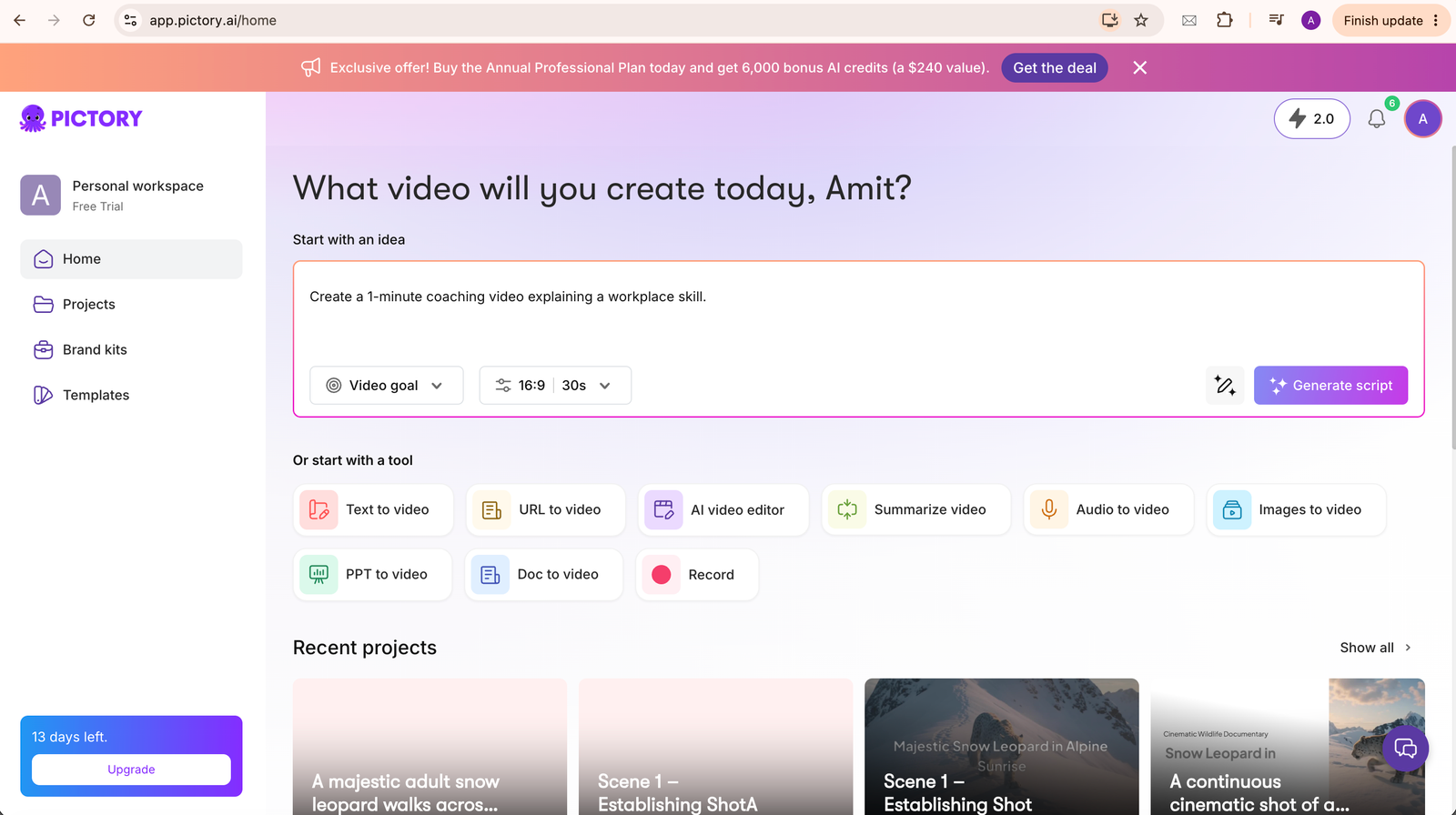
The project inside its editor, where the scenes were generated and assembled.
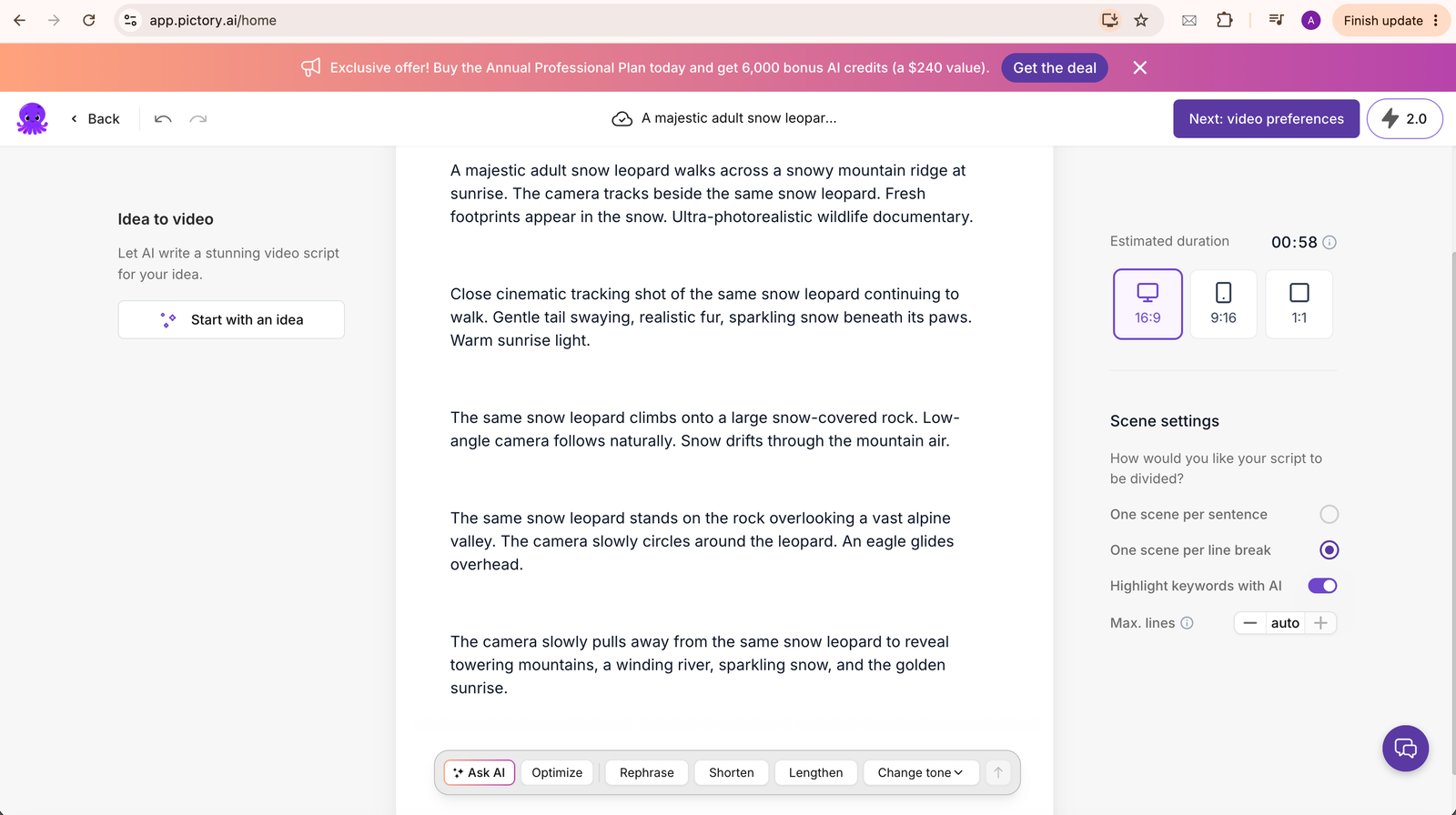
The wildlife-documentary brief entered into it to generate the test video.
Worked: the snow leopard, snowy alpine mountains, and sunrise lighting all generated correctly, the story progressed as written, and the scenes appeared in the requested order.
Fell short: the complex camera instructions were simplified — the orbit wasn't obvious and the pull-back reveal was weaker than expected.
Verdict: follows the overall story very well, but simplifies complex camera moves.
A pleasant surprise. The leopard stays visually similar throughout most scenes, with consistent fur colour, body size, and mountain environment.
Minor drift: the face changes slightly, tail proportions vary, and fur texture shifts a little — but it's still far better than many image-to-video tools.
One of its real strengths. Every scene has good framing, cinematic composition, proper depth, and a genuine documentary feel — it looks professionally composed.
Very impressive. Lighting, shadows, snow, atmosphere, and colours all hold up, with no obvious AI melting, broken geometry, or major artifacts.
Where it struggles. The animation itself looks good, but each scene only contains a short burst of unique motion — then it repeats or pauses before the next scene, which breaks immersion.
The prompt requested tracking, orbit, and pull-back. In reality it produced mostly static cinematic shots with mild movement — pleasant, but not fully controllable.
The leopard's movement looks natural, but it's short in duration. Instead of walking continuously, it walks, then repeats or pauses until the scene changes.
Beautiful. Snow, mountains, morning light, and atmosphere are all excellent — the standout category.
The one clear dislike. In this test, it automatically placed the prompt on screen as captions, which felt distracting on a cinematic video. Unless you're making narrated content, you'll probably want to disable or remove those text overlays.
Good scene-based editing — regeneration, replacement, adding music, and trimming are all easy. The catch: motion duration can't be directly controlled.
Biggest discovery: In our test, Pictory did not appear to generate long continuous AI motion per scene. Instead, we observed roughly a few seconds of unique animation with that scene stretched to match the requested duration — so asking for 12 seconds didn't necessarily produce 12 seconds of new animation; the motion repeated or paused. For reviewers, that's an important distinction between scene-generation quality and continuous-motion generation.
- Beautiful cinematic visuals
- Great atmosphere
- Good subject consistency
- Excellent scene composition
- Beginner friendly
- Storytelling-first workflow
- Limited continuous animation
- Camera control not very precise
- Automatic captions
- Motion loops in longer scenes
- Less suitable for long, uninterrupted AI sequences
Overall scores
| Category | Score |
|---|---|
| Prompt adherence | 8.5/10 |
| Character consistency | 8/10 |
| Visual quality | 9/10 |
| Motion quality | 6/10 |
| Camera control | 6.5/10 |
| Environment | 9.5/10 |
| Editing workflow | 8/10 |
| Overall | 8.1/10 |
It excels as an AI-assisted storytelling and video-production platform. It produces attractive, cinematic scenes and makes it easy to assemble them into a polished video. Where it falls short is long-form generative motion: if you expect a single uninterrupted 10–20 second AI-generated shot with continuous movement, you'll likely hit repeated or paused motion within scenes — dedicated video-generation models such as Veo or Kling are currently better suited to that.
Bottom line: for scripted videos, explainers, marketing content, and short cinematic sequences, it is a capable and approachable tool. For long, continuous AI motion, reach for a dedicated generative-video model.
The Librarian,
not the Director.
Most reviews position it as a text-to-video tool and leave it there. That is accurate but misses the more important distinction.
InVideo AI leans Director — it creates scenes from scratch using generative AI. Pictory has traditionally been the Librarian — it searches and retrieves existing footage from a stock library and stitches it to your script. You are not directing a video from a blank page. You are querying a library and assembling what it finds.
That distinction has blurred: Pictory's AI Studio now generates custom images and video clips from text prompts too. But the platform's center of gravity is still content repurposing — take what you have already created and get it into video format fast — with generative tools layered on top rather than replacing that core.
Pictory has traditionally been the Librarian, not the Director: it retrieves, organises, and assembles more than it invents.
Paste your content.
Watch it become a video.
When you first open the tool, the primary input is text — a blog post, a script, a URL, or an uploaded video. It isn't built around a traditional multi-track editing timeline — there's a simple scene-navigation strip at the bottom of the editor, not a frame-level production timeline. There is no creative setup beyond that. You paste your content and the system begins.
- Text broken into scenes automatically based on sentence or line breaks
- Visuals selected automatically based on each scene's text and context, with keyword analysis also guiding the match
- AI voiceover applied in your chosen voice style
- Scene-level editing — replace a clip, adjust text, reorder scenes
- Export in platform-friendly formats and aspect ratios, with resolutions up to 1080p on paid plans
The experience feels like watching an automated slideshow assembler work through your content. For a blog owner who needs a YouTube version of every post — the first session can feel surprisingly fast. For a creator who wants cinematic control — it will feel like someone else is making creative decisions on their behalf.
This setup rewards creators who have content and need distribution. Arrive with a blog post or a webinar recording — the tool handles the conversion.
Not text-to-video.
Content-to-distribution.
Most reviews call it a text-to-video tool and compare it to InVideo AI. That comparison misses the point.
Its real superpower is speed of content conversion. Blog to video. Webinar to social clips. Long-form to short-form. It removes most of the manual editing step — but that speed trades off against creative control. The workflow prioritises conversion speed over fine-grained creative control.
For a content team that produces written content at volume and needs a video distribution layer without adding production overhead — this is exactly the right tool.
How to edit a one-hour webinar
into 10-minute highlights with Pictory
Upload a long-form video — a Zoom recording, a webinar, a podcast episode — and it auto-transcribes it. From that point, delete text from the transcript and the video cuts that section. Trim an hour-long webinar to ten minutes without touching a timeline. Extract highlights without scrubbing through footage manually.
This is one of the platform's strongest capabilities, particularly for creators repurposing long-form recordings.
- 1Upload your long-form video — Zoom recording, webinar export, or podcast. MP4, MOV, and common formats supported.
- 2Wait for auto-transcription — Transcription quality will vary with audio quality, accents, speakers, and recording conditions, so review the transcript before editing.
- 3Delete text to cut the video — Highlight any sentence or paragraph in the transcript and delete it. The video cuts that section instantly. No scrubbing.
- 4Review scene-level clips — After trimming, review the remaining scenes and replace any stock clips that don't match the retained content.
- 5Export with social presets — Choose YouTube, Instagram, or LinkedIn presets. Export. Done.
- Review the transcript before editing — errors in transcription become cuts in the wrong places. Fix errors first.
- Remove filler sections — Delete the corresponding text or scenes to cut intro material, housekeeping announcements, or unnecessary Q&A from the video.
- Keep cuts generous — Leave a beat before and after key points. Tight cuts feel abrupt in the final video.
- Use highlights, not recaps — Extract the strongest moments as standalone clips rather than a continuous summary. This also gives you multiple clips you can publish separately across social platforms.
- It's simpler than Descript — If you need voice cloning, overdubbing, or precision frame-level cuts, Descript goes deeper. It's simpler for basic trimming.
Stock matching:
literal, not intelligent.
Pictory automatically selects visuals based on the text and context of each scene, while keyword analysis and descriptive tags also influence the visual search. In practice it still works best when your script gives it something concrete and visually identifiable to search for — abstract language, metaphors, and idioms tend to produce less relevant, more literal matches.
Knowing this before you start changes how you write scripts for it and what you expect from the output. The examples below are illustrative — meant to show the pattern of literal search behaviour, not documented outputs from a specific test.
"We were barking up the wrong tree" → shows a dog
"The market correction hit hard" → shows a stock chart with no context
"We need to think outside the box" → shows a cardboard box
"This quarter was a rollercoaster" → shows an actual rollercoaster
"Our revenue grew 40% this quarter" → shows a rising bar chart
"A team of engineers reviewed the code" → shows people at computers
"Customers reported faster delivery times" → shows a delivery van or packages
"The CEO addressed the annual conference" → shows a presenter on stage
The rule: write for visual search, not just for the reader. Use concrete nouns, avoid idioms, break abstract concepts into literal descriptions, and front-load the key noun in every sentence.
- Use concrete nouns — people, places, objects, actions — not abstract concepts or idioms
- Keep each scene focused on one clear idea. Depending on your scene settings, Pictory can create scenes from sentence or line breaks, and dense scenes can make visual matching harder
- Avoid metaphors — "hit a wall", "light at the end of the tunnel", "level the playing field" can produce literal or less relevant results
- Name the subject explicitly — "the marketing team reviewed the campaign" beats "they looked it over"
- Use natural line or paragraph breaks when you want clearer scene boundaries; Pictory can be configured to create scenes at line breaks. Structure your script like a slide deck
- Test abstract sections first — paste the hardest paragraph in first to see what it does with it before committing to the full script
6 features that deliver real results
Paste a blog post URL and it converts into a structured video with matched stock footage, captions, and voiceover — a fast path from written content to video distribution.
Upload a long video, auto-transcribe, delete text to cut the video. Trim long-form recordings into highlights without working through a traditional timeline. The most underrated and genuinely powerful feature in the product.
Realistic digital presenters that appear inside video scenes and narrate your script using AI voices. Apply a consistent professional presence without a camera or microphone. Avatars can be positioned and styled globally or adjusted on individual scenes.
Generate custom visuals from text prompts directly inside the editor. When stock footage doesn't match your script, AI Studio creates a scene instead. Bridges the gap between stock assembly and fully generative tools.
Built for content teams that produce volume. The workflow is repeatable and the output is consistent, which suits stock-based video production at scale.
Export presets tuned for YouTube, Instagram, LinkedIn, and mobile delivery, at resolutions up to 1080p across landscape, portrait, and square formats. Captions generated and applied automatically.
G2 Reviews
81 Pictory AI Reviews
Pictory AI currently has a 4.6/5 rating on G2 from 81 reviews (current as of this writing — check G2 directly for the latest). Reviews include praise for ease of use and the video creation workflow, alongside criticism around customization and voice/template flexibility.
4.6 / 5 — ★★★★★ from 81 reviews.
- Ease of use — many reviewers describe the workflow as straightforward and efficient for content creation
- Video creation speed — reviewers frequently highlight how quickly a finished video comes together
- Output quality — several reviews describe the finished videos as professional and publish-ready
- Voice flexibility — some reviewers find the AI voice options usable but limited in flexibility
- Templates and customization — a recurring criticism is limited flexibility in templates and customization options
- Avatar and voice selection — some reviewers note the selection of avatars and voices feels limited
This summary is based on 81 G2 reviews as of writing. Visit G2 to see the most current user feedback, detailed breakdowns, and individual review comments.
Pictory AI Features:
Avatars, Studio, and what's new in 2026
The platform has expanded significantly beyond its original stock-retrieval engine. The platform now includes a generative AI layer that addresses the two biggest limitations of stock-based video — visual uniqueness and human presence.
Realistic digital presenters built into the video editor. Select an avatar, assign your script, and a photorealistic presenter narrates your content on screen. No camera, no microphone, no recording setup. Position and style avatars globally or override per scene, giving you presenter-led video at content team scale.
Text-to-image and text-to-video generation directly inside its editor. When stock footage metadata doesn't produce a usable match for your scene, AI Studio generates a custom visual from a text prompt instead. Reduces the "generic stock" problem for abstract or niche content without switching to a separate tool.
Pictory offers AI voices via an ElevenLabs partnership, including voice cloning from a short audio sample, in addition to its built-in voice library. Multi-language support is available on higher plans. In practice, the narration reads as clear and informational; for content where the voice needs to carry substantial emotional or narrative weight, a professionally recorded human performance may still be preferable.
Enterprise
& API Capabilities
It offers enterprise-grade features that make it viable for corporate training teams, marketing departments, and developers who need video generation embedded into their workflows — not just individual content creators.
Pictory offers a separate API Self-Serve plan as well as an Enterprise API option — pass a script or blog URL, receive a rendered video, priced independently of the main subscription plans, for teams embedding video generation into their own applications or content pipelines.
Teams share brand kits — consistent fonts, colours, logos, and intro/outro templates — across all members. Ensures visual consistency across a content team's output without manual standardisation on every video.
Pictory is SOC 2 and GDPR compliant and holds ISO 27001 certification. Custom Enterprise plans include personalised onboarding and SLAs — relevant for regulated industries or organisations with specific data handling requirements. If compliance is a hard requirement, verify current certification scope directly with Pictory before committing.
Host and distribute videos through this hub — an interactive video player with analytics. Suitable for training content, product demos, and internal communications where engagement tracking matters beyond just social views.
A few things worth
understanding upfront
Being honest about how a tool is designed helps you get the most from it. Here is what to know before you commit to it as your primary tool.
Stock selection works best when the script contains concrete, visually identifiable concepts. Abstract or idiomatic language can produce less relevant visuals. This is a characteristic of how the tool works, not a bug to be fixed.
Pictory's stock visuals come from Getty Images and Storyblocks — shared stock libraries used across all Pictory users. Because that pool is shared, popular clips can appear across multiple videos on the platform. For brand-sensitive content or premium positioning, that's a real constraint worth planning around.
You can replace individual clips, adjust text, and reorder scenes. Pictory is not designed around a traditional multi-track, frame-by-frame editing workflow, so precision editing and motion design are not its primary strengths — though it does offer scene-level motion effects (Ken Burns-style pans) and PPT slide animation. If your content requires true frame-level control, Descript or CapCut Pro serves you better.
Export supports up to 1080p across landscape, portrait, and square formats, selectable within your plan's options — solid for social and mobile delivery. Pictory doesn't expose manual bitrate or CRF controls beyond resolution/aspect ratio — encoding is otherwise handled automatically by its cloud renderer, and on large displays or premium/broadcast use cases, compression and scaling can become more noticeable.
The built-in AI voices and ElevenLabs-powered options are clear and usable for informational content, and voice cloning is available for a closer match to a real voice. In practice they still read more like narration than performance — for content where the voice needs to carry persuasion, story, or brand tone, a recorded voice generally gives better results.
Because it leans on shared stock and repeatable templates, output can look visually similar to other Pictory videos at default settings. For creators building a distinct brand aesthetic, some additional design work after export helps differentiate the output.
- Need cinematic, brand-differentiated video with a fully custom visual identity
- Want generative AI to build every scene from scratch as the default workflow (InVideo AI leans further this direction)
- Require frame-level precision editing or motion design (use Descript or CapCut Pro)
- Produce content primarily for large screens, presentations, or broadcast
- Want a tool that gets smarter about your specific brand the more you use it
Stock fatigue:
how to avoid generic-looking videos
Every user draws from the same shared Getty Images and Storyblocks stock libraries. The same matching logic. At volume, audiences start recognising the footage — and when they do, your content stops feeling like yours.
This is not a tool-specific problem. It is a stock-video problem. But the automation means you hit the ceiling faster than if you were manually curating every clip.
- Use the brand kit — enforce consistent colours, fonts, and logo placement on every video so the visual identity is yours even when the footage is shared
- Build a custom intro and outro template — a branded 3-second open and close makes the video feel owned even when the middle is stock
- Use AI Studio for abstract scenes — generate custom visuals for the scenes that stock footage handles worst, breaking the "this looks like every other Pictory video" pattern
- Replace the first and last clip manually — the clips people remember are the opening and closing frames. Replace these with stronger, less generic choices
- Add motion design in CapCut — take your export into CapCut Pro and add trending text animations, transitions, and overlays that differentiate the final cut
- Overlay custom graphics — lower thirds, callout boxes, and branded frames added in a separate tool make the video look custom-produced
- Splice in real footage — record 10 seconds of your actual product, team, or workspace and cut it into your export. Even a short real clip breaks the stock pattern completely
- Use Descript for final polish — if a video needs to be premium, use it for the rough cut and Descript for the final voice and precision edit
What's actually
under the hood
No installation. All processing happens on its servers. Works across devices on any modern browser.
Multiple entry points: blog URL, script, video upload, image, PowerPoint, and PDF documents (Doc-to-Video; Word/DOCX support is listed as coming soon). Video upload enables the long-form editing workflow; Image-to-Video, PPT-to-Video, and Doc-to-Video convert static content into video. Blog URL is typically the fastest path to a first output.
AI selects visuals based on scene text and context, with keyword analysis and descriptive tags also guiding the match. Works best with concrete, literal script language; abstract phrasing and idioms are more likely to produce mismatched visuals.
Generates custom visuals from text prompts directly inside the editor. Bridges the gap between stock retrieval and fully generative tools. Reduces the generic-footage problem for abstract content.
Photorealistic presenters applied per scene, with global and per-scene positioning/styling controls. No camera required. Makes it viable for business, training, and corporate content where a human presence matters.
Sourced from Getty Images and Storyblocks — shared stock libraries used across all users. Stock-fatigue risk increases at volume. Use AI Studio and brand kits to differentiate output.
Scene-based editing rather than professional frame-by-frame editing — replace clips, edit text, reorder scenes. Advanced multi-track precision and motion-design control remain limited compared with dedicated editors, though scene motion effects and PPT slide animation are available.
Built-in voice library plus ElevenLabs-powered voices and voice cloning. Clear and usable for informational content; a recorded or cloned human voice may still be preferable for narrative or persuasive work. Multi-language support available on higher plans.
Delete text, video cuts. Simpler than Descript but faster for basic long-form trimming. The most practical and underrated feature in the product.
Resolution and aspect ratio are selectable — up to 1080p, with landscape, portrait, and square formats — good for YouTube, Instagram, and LinkedIn. No manual bitrate or CRF control beyond that; encoding is otherwise automatic via cloud rendering. On large displays, compression and scaling artefacts can become more visible.
Trigger video creation programmatically — pass a script or URL, receive a rendered video. Sold as a separate API Self-Serve plan, plus an Enterprise API option — not bundled into the standard subscription tiers.
Shared brand kits, team collaboration, Pictory Central for interactive hosting, SOC 2/GDPR/ISO 27001 compliance, and dedicated account support on custom Enterprise plans.
Pictory vs InVideo AI:
stock retrieval vs generative video creation
These two tools are frequently compared — and frequently confused. They solve different problems for different creators. Here is a direct side-by-side on every dimension that matters.
| Capability | Pictory | InVideo AI |
|---|---|---|
| Footage source | Stock retrieval Searches and assembles from the Getty Images/Storyblocks libraries, with AI Studio available for generated visuals. Fast and consistent, with a shared-library look at default settings. | Generative-first and stock-assisted Combines AI-generated scenes with stock and other media sources. More unique visuals, less predictable output. |
| Input types | Blog URL, script, video upload, image, PPT, PDF document | Text prompt, script, brief description |
| Webinar editing | ✓ Strong Transcript-based cut-by-text. Upload, transcribe, delete to cut. Editor includes a simple scene-navigation timeline, not a multi-track one. | ✗ Not a primary focus Not built around long-form video editing or repurposing existing recordings. |
| Blog to video | A fast workflow Paste a URL, get a first draft in minutes. | Possible but slower The workflow is more prompt-driven and may require more iteration depending on the desired result. |
| Visual uniqueness | Limited by default Shared stock library. Stock remains an important part of the workflow, alongside AI Studio's generative visuals. | ✓ Higher by default AI-generated scenes vary per prompt. |
| AI avatars | ✓ Available Realistic digital presenters applied per scene. No camera required. | ✓ Available AI presenter support available. Strong for scripted delivery. |
| Editing control | Scene-level editing Not designed for traditional multi-track/frame-level editing. | Prompt-based, plus a pro editor Offers prompt-based creation plus a professional multitrack editor for users who want deeper manual editing control. |
| Speed of output | Among the faster options For turning existing content into a first draft. | Generally slower The generative process takes longer and usually needs more iteration. |
| Best for | Distribution bottleneck — you have content and need video | Creation bottleneck — you need AI to build the visuals for you |
What to expect
session by session
Paste a blog post and watch the output appear. The stock footage matching is functional but occasionally misses the mark on abstract or nuanced content. The first video can come together quickly once the source content is ready. Discover the webinar editing feature and run it immediately.
You learn to write scripts with concrete nouns, literal descriptions, and clear scene breaks. You identify which content types produce good visual matches. You discover the stock fatigue ceiling and start using brand kits and AI Studio to push past it. The workflow becomes a repeatable system, not an experiment.
You use it for what it does well — fast conversion of written and long-form content — and bring other tools in for anything requiring visual differentiation or editorial precision. Pictory handles the base conversion. CapCut handles the polish. Descript handles the precision edit. Experienced users stop expecting relevance and start scripting for predictability.
Three creators who will
get real value from this
You produce written content at volume and need a video layer without adding production overhead. Every blog post becomes a YouTube video. Every article becomes a LinkedIn clip. It is the conversion layer between your writing workflow and your video distribution.
You record hours of content and need highlights, clips, and social cuts without spending hours in a timeline. Upload, transcribe, delete the sections you do not need, export. This is one of Pictory's strongest use cases and its most underappreciated feature.
You need consistent, publish-ready video output at scale. Creative differentiation is secondary. Speed and repeatability are primary. Use the API to automate the pipeline, shared brand kits to enforce consistency, and AI Avatars to add human presence without production overhead. It is built for exactly this production mode.
When it's
not the right choice
Being honest about fit is what makes a recommendation worth trusting. Here is when a different tool will serve you better than Pictory.






Frequently Asked
Questions
The verdict
Pictory made a deliberate choice — convert existing content into video as fast as possible, for creators who already have content and need a distribution layer.
Most of the product reflects that choice. The text-to-scene assembly. The stock footage retrieval system. The transcript-based webinar editor. The export presets tuned for social. AI Studio and avatars extend the platform with generative capability without displacing that core identity.
It isn't trying to compete directly with InVideo AI on generative-first video creation or with HeyGen on avatar-focused production. It's trying to do one specific thing well — take what you've already created and get it into video format fast.
Pictory has traditionally been the Librarian, not the Director: it retrieves, organises, and assembles more than it invents.
For creators whose bottleneck is distribution, not creation — that is exactly what they need.
Try Pictory for yourself
Paste a blog post URL and let the first session run. The speed of the first output tells you quickly whether this workflow fits how you produce content.
 Try Pictory →