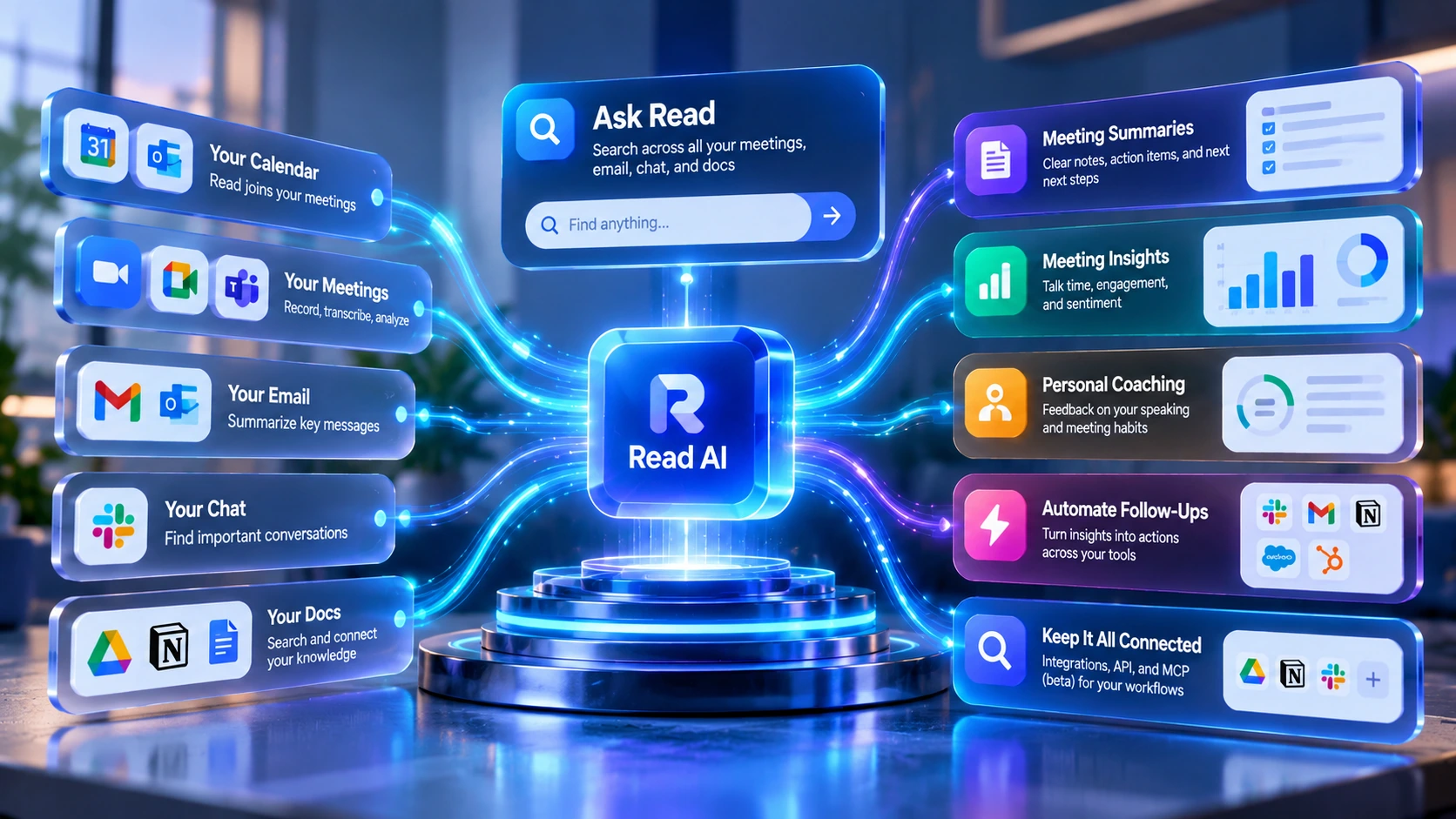
Read AI records meetings, scores how they went, and lets you search across meetings, email, and chat from one place. This review covers how it actually works, current pricing across four plans, what G2 and Trustpilot reviewers report, its real limitations around consent, and who gets genuine value from it.
Pricing and features can change. Check Read AI's current pricing page before you subscribe.
Read AI is a meeting assistant that joins your video calls, records them, and writes a summary with action items. Once you connect your email and messaging accounts, it can summarize those too. A built-in search tool called Ask Read lets you ask questions across everything you've connected, meetings, email, and chat, and get an answer with a link back to where it came from.
Read AI also scores how a meeting went. It tracks talk time, engagement, and sentiment (an estimate of the tone or emotional direction of the conversation), and it gives you personal coaching on things like talking speed and filler words, a layer most mainstream notetakers skip entirely.
When you connect your Google or Microsoft calendar and enable auto-join, Read AI's bot, called Read, can join scheduled calls according to your meeting and participant preferences. After the meeting, you get a transcript, a summary, action items, and a set of metrics, including a coaching readout for anyone who attended with an active Read account.
Read AI also works without a bot. You can upload a pre-recorded audio or video file and get a transcript and summary back, even for a call Read never joined. Uploaded reports work differently in one way worth knowing: Read AI doesn't generate a coaching readout for them. If you upload an interview, a webinar, or an old recording, you'll get the transcript and summary, but no coaching tab.
Four webinar recordings from Read AI's own YouTube channel, from workspace onboarding to smarter workflows, templates, and driving revenue.
Best practices for configuring your Read AI workspace and onboarding your team effectively. (Read AI channel)
Using Ask Read prompts to manage your book of business, handle account renewals, and keep the pipeline moving. (Read AI channel)
Building reusable templates for follow-ups, deal summaries, and stakeholder updates across the deal cycle. (Read AI channel)
Read AI's VP of Sales and VP of Product on AI-powered workflows, templates, and integrations for sales teams. (Read AI channel)
Most meeting tools stop at a transcript. Read AI does three things that go beyond that.
It covers more than meetings. Once you connect your Gmail or Outlook account, Read AI can summarize those too, and it summarizes connected Slack activity separately from email rather than lumping them together. Ask Read then searches across everything you've connected, meetings, email, chat, and docs, and answers with a link back to the source. If you're juggling a lot of channels and want one search box over all of them, that's the main reason to look at this tool.
It scores how the meeting went. Every live-meeting report comes with talk-time, engagement, and sentiment metrics. A personal Meeting Coach flags your talking speed, filler words, and clarity, and tracks how you improve over time.
It can automate follow-up tasks. Read AI's Agents feature can send a prioritized recap after every call, draft a Monday morning briefing of last week's meetings, or push next steps into another tool without you doing it by hand.
In short: one assistant across meetings, email, and messages; built-in analytics and coaching most notetakers skip; works with Zoom, Meet, and Teams, with desktop and mobile apps and a Chrome extension; and a free plan that actually covers 5 meetings a month with unlimited Ask Read search.
Read AI's meeting analytics and coaching are a key difference from tools such as Fellow, Fireflies, and Otter. Every live meeting report includes:
Reviewers note one real limitation: sentiment scoring can misread context. A moment of humor or quiet thinking can get flagged as "low engagement." Treat the score as a rough signal, not a precise measurement. Remember too that this analytics layer is a live-meeting feature; an uploaded recording gets a transcript and summary, not a coaching readout.
Ask Read is Read AI's search tool. Type a plain-language question, and it searches your connected meetings, emails, messages, and docs, then answers with a link to the source. Being specific helps: naming a person, account, or date in your question gets a sharper answer than a vague one. A few examples it can answer: "What did we decide about pricing on last week's call?", "Summarize every conversation with a specific account this quarter," and "What are the open action items across my meetings this week?"
There are three separate ways AI models touch your Read AI data, worth keeping straight. First, Ask Read's normal search works over your own connected meetings, email, and docs. Second, paid plans add a mode inside Ask Read for open-web questions through Anthropic's Claude and OpenAI's GPT, built into the same interface; this one draws on public information, not your connected data, and Read AI says it has zero-retention agreements with both providers. Third, Read AI's API and MCP server (see Integrations below) let a separate external AI tool, like a Claude or ChatGPT app you connect yourself, query your Read AI data directly, a different connection than either of the above. Workspace admins can turn the open-web Ask Read mode off entirely in Workspace Settings.
Read AI also has a newer, more experimental feature called the Digital Twin, nicknamed Ada, announced in early 2026. It works from your connected email and Read AI data to handle scheduling and answer questions using information you've shared with it. It's still early in its rollout.
The free plan gets basic integrations only. Premium integrations, including Salesforce, HubSpot, Notion, Jira, Confluence, Zapier, and webhooks, need a paid plan. For Confluence, Jira, Linear, and Notion specifically, pushing a report out to those tools is a manual action you trigger yourself, not an automatic background sync; that's separate from Ask Read being able to search connected data from some of these same services.
Read AI works as a web app, desktop apps for Windows and macOS, iOS and Android apps, and a Chrome extension for Gmail, Meet, and Calendar, all synced to one account.
For video calls, Read natively joins and records Zoom, Google Meet, and Microsoft Teams meetings as a bot. It does not join or record Webex meetings that way. For Webex, the desktop app can capture your computer's system audio during the call instead, a different mechanism than the bot joining the call directly.
Read AI's pricing page lists 20+ supported languages for the product overall; exactly which features support which languages can vary, so treat that figure as the headline number rather than a guarantee that every feature covers every language.
Read AI says plainly that it does not sell your data.
Model training on your meeting content requires your explicit opt-in and is off by default. Separately, there's a Customer Experience Improvement Program used to evaluate product performance, and that one is opt-out by default, meaning it's on unless you turn it off. These are two different things: training needs you to actively say yes, while the improvement program needs you to actively say no. You can manage both in your account settings.
Data is encrypted both in transit and at rest. Read AI is audited for SOC 2 Type II compliance and says it is GDPR compliant. Its Enterprise+ plan lists "HIPAA compliance" among its features; Read AI's own support documentation describes this more specifically as supporting HIPAA-aligned deployments with a signed Business Associate Agreement for regulated customers.
Report sharing is the one place where this product is more open than people expect. Read AI's own default and recommended setting automatically shares a meeting's report with everyone who was invited to it, not just the host. You can change that, per meeting or account-wide, to limit internal and external participants to editor, viewer, or no access. Normally, other invitees who add their own Read bots can apply their own sharing settings to the meeting. The meeting owner can prevent this by marking the report private. This option isn't supported for Microsoft Teams meetings. Separately, if you're in a company Workspace, check the Team Report Access setting: a Workspace admin can set it to share every team member's reports with admins, with managers, or with the whole team. That's a different, workspace-level setting from the per-report sharing above, and Read AI's documentation doesn't say whether one overrides the other, so check both rather than assuming.
Organizations can also limit or turn off transcript storage through retention controls in Account Settings. Without a custom policy, meeting reports stay available for as long as the account is active. Enterprise+ workspaces can set a policy that automatically deletes reports after a chosen number of days (Read AI's own example is 30 days). Check your workspace's retention setting before uploading anything sensitive.
Before rolling this out to a team, in plain terms: check whether model training is turned on, whether you're enrolled in the product-improvement program, and who your reports actually get shared with by default. Pair that with the auto-join settings further down, since a lot of the real privacy risk with this tool comes from who it records and who it shares with, not how the data is stored.
Read AI charges per user. There's a free plan and three paid tiers. Annual billing costs about 25% less than paying monthly; prices below show annual first, then monthly.
5 meeting transcripts a month.
$19.75/mo billed monthly. Unlimited meeting transcripts.
Read AI's own "most popular" label. $29.75/mo billed monthly.
$39.75/mo billed monthly. Requires 5+ licenses.
Every paid plan also includes unlimited meeting reports, unlimited storage, and workspace access. File upload credits apply to uploaded audio or video recordings specifically, not live meetings, and they're measured against recording length rather than a simple count of files. Read AI also caps how long any single meeting can run: 1 hour on Free, 4 hours on Pro and Enterprise, and 8 hours on Enterprise+. If a meeting goes past that cap, Read leaves and reports on whatever it captured up to that point.
Is it worth it for a small team? For one person, the free plan genuinely works. For a team of 5 to 20 people that needs unlimited reports and the premium CRM integrations but doesn't need video playback, Pro is a reasonable starting point; step up to Enterprise once playback matters. Two costs catch people off guard: video playback only starts on Enterprise, and per-seat pricing adds up fast as a team grows.
Prices are in US dollars and were confirmed directly against Read AI's live pricing page on 2026-10-13. Volume discounts apply at 100+ annual licenses (10% off), 500+ (15% off), and 1,000+ (20% off). Zoom One Pro, Business, and Business Plus subscribers get Read AI's premium features bundled in through Zoom's Essential Apps program, at no extra cost. Billing is by credit card. Cancelling stops future billing and you keep access through the end of your current billing period, but past charges are generally not refunded; check Read AI's current billing terms for the specifics on exceptions.
Read AI holds a 4.0 out of 5 rating on G2 from 43 reviews, and a 1.3 out of 5 rating on Trustpilot from 110 reviews, both rechecked directly against the source on 2026-10-13. Neither platform claims to represent every customer, so treat both numbers as a sample, not a full picture. Review platforms update constantly, so check G2 and Trustpilot directly for the latest reviews.
What Users Love
Top Concerns
In the reviews examined here, the criticism clusters around consent and control more than around whether the notes themselves are accurate. That's worth weighing before rolling this out to a team.
These reflect each tool's general positioning and public marketing, not a side-by-side test TechScribe ran directly.
| Alternative | Read AI's edge | What the other tool emphasizes |
|---|---|---|
| Fellow | Analytics, coaching, and search across more than just meetings | Markets itself around enterprise security and admin controls |
| Fireflies.ai | Meeting analytics plus email and messaging coverage | Markets itself around CRM automation and a searchable team knowledge base |
| Otter.ai | Analytics and coaching on top of notes | A transcription-first tool with a well-known free plan |
| Fathom | More analytics and search breadth | Markets a simpler, more permission-first joining model |
Both record, transcribe, and sync to a CRM, which makes them a natural pair to weigh against each other for a sales team. The general difference in how each positions itself: Read AI leans into analytics, coaching, and search across channels. Fireflies.ai leans into CRM automation and a searchable team knowledge base. Verify current feature and pricing details directly with each vendor before deciding.
| For a sales team | Read AI | Fireflies.ai |
|---|---|---|
| CRM sync | Salesforce and HubSpot on paid plans | Salesforce, HubSpot, and custom field mapping |
| Search | Ask Read spans meetings, email, and chat | Semantic search focused on the meeting library |
| Analytics and coaching | Engagement, sentiment, and a personal coach | Talk-time and conversation trackers |
| Meeting-joining behavior | Has an auto-join setting with options for which meetings and which participants; reviewers often report it ends up broader than expected | Similarly has an auto-join setting; enabling it unlocks unlimited transcription on its free plan |
| Free plan | 5 meeting reports a month, unlimited Ask Read | 3 transcription credits by default (auto-join can unlock unlimited transcription), 400 minutes of storage per seat |
If your reps want coaching and search across every channel, and someone will manage the auto-join settings, Read AI fits that. If the priority is tight CRM automation and a shared knowledge base, compare Fireflies directly before deciding.
Anyone who wants rich summaries, personal search, and speaking coaching.
People in back-to-back calls who want recaps, action items, and CRM sync without manual work.
Anyone juggling meetings, email, and chat who wants one search tool over all of it.
Teams that want engagement and talk-time data, not just notes, and that will put in the work to govern how it's rolled out.
Distributed teams can use Read AI to cut down on live meetings. A few ways teams do this: sharing summaries as async updates so absent teammates catch up in minutes instead of watching a full recording, using Ask Read to find a decision or action item without attending the original call, auto-sharing recaps to Slack or email so the whole team stays aligned, and using the analytics to spot meeting-heavy patterns and cut back.
This fixes the most common complaint, and takes a few minutes.
Whatever you set here, it's worth following your own organization's recording policy and any local consent requirements for the people on your calls, separately from Read AI's own settings.
One thing worth knowing: turning off your own auto-join stops Read from joining on your behalf, but it doesn't control whether another attendee brings their own Read assistant into the same meeting under their account. If Read does show up uninvited, the host or any participant can remove it mid-meeting: in Zoom or Teams, typing "read stop" or "opt out" in chat works; in Google Meet, only the host or co-host can remove Read as a participant, though anyone can use an opt-out link if one's posted.
Day one is simple: connect a calendar, let Read AI join a call, and read the report afterward. The deeper features, like Ask Read, coaching trends, and analytics, take more time to learn to use well.
The one thing worth doing on day one isn't a feature at all: set up which meetings Read AI joins and how it treats guests, so auto-join doesn't catch anyone off guard. Admins on Enterprise plans get controls over report distribution, which meetings get joined, and license management.
If you want a quieter, permission-first notetaker, look at Fathom or Fellow. If your main need is sales-call analytics specifically, a tool built for that use case may fit better. If deep CRM automation and a shared team knowledge base matter more than personal coaching, Fireflies.ai is worth comparing directly.




This review was researched and written by the TechScribe editorial team. It's based on Read AI's own product pages, help center documentation, and live pricing, plus verified user feedback from G2 (4.0 out of 5 across 43 reviews) and Trustpilot (1.3 out of 5 across 110 reviews), both checked on 2026-10-13. A separate verification pass rechecked the plan limits, auto-join setup, platform support, and training-data claims directly against Read AI's help center before publishing. Where Read AI has real limitations, including aggressive auto-join, consent concerns, and support complaints, we say so plainly, and we update this page as Read AI's features and pricing change. This page may contain affiliate links; if you sign up through one, TechScribe may earn a commission at no extra cost to you. That relationship has no bearing on the findings above.
Read AI is an AI meeting assistant that summarizes and transcribes meetings, plus emails and messages, and lets you search across all of it with a tool called Ask Read. It also scores meeting analytics, like engagement, sentiment, and talk time, and gives you a personal speaking coach.
Yes. The free plan covers 5 meetings a month with summaries, transcription, and unlimited Ask Read search. Paid plans are Pro ($15/user/month), Enterprise ($22.50), and Enterprise+ ($29.75), all billed annually, with higher rates if you pay monthly.
Zoom, Google Meet, and Microsoft Teams, where Read joins meetings directly as a bot, plus apps for Windows, macOS, iOS, and Android, and a Chrome extension for Gmail, Meet, and Calendar. Read doesn't join Webex meetings as a bot; the desktop app can capture system audio there instead.
Not without your explicit opt-in, which is off by default. A separate program used to evaluate product performance is opt-out by default, meaning you'd need to turn it off yourself if you don't want to participate. Read AI is audited for SOC 2 Type II compliance and says it is GDPR compliant.
Auto-join is a setting with its own on/off switch and options for which meetings and which participants, but many users report it ending up broader than they expected. It's one of the most common complaints. Check Account Settings early, especially before external calls, and also check who your reports get shared with by default.
Yes, for live meetings. Every live-meeting report gets engagement, sentiment, and talk-time scores, plus a personal Meeting Coach that flags talking speed, filler words, and clarity, with trends over time. Uploaded recordings don't get a coaching readout.
Ask Read is Read AI's search tool. It answers questions across your meetings, emails, and messages, with a link back to where the answer came from. Paid plans add a separate mode for open-web questions through Claude and GPT, built into the same interface.
Free for 5 meetings a month. Paid plans, billed annually, are Pro at $15, Enterprise at $22.50, and Enterprise+ at $29.75 per user per month. Monthly billing costs more. Enterprise+ requires 5 or more licenses.
Open Account Settings and find your join preferences, where you can turn off auto-join or narrow it to certain meetings. You can also toggle Read on or off for a single meeting from your Calendar page. See the five-step setup above.
Read AI combines meeting notes, speaking feedback, and search across your connected work apps in one tool. For an individual or a customer-facing team that wants that kind of insight, few tools in this category do as much.
Its main drawback is an auto-join setting that often ends up broader than people expect, paired with a report-sharing default that shares with every invitee unless you change it. That's a recurring source of its consent and removal complaints, and it shows up clearly in its low Trustpilot score.
Our recommendation: if you value the analytics, coaching, and cross-channel search, and you're willing to spend a few minutes governing how it joins meetings and treats guests, Read AI is genuinely useful. If you need a quieter, permission-first notetaker instead, look at Fellow, Fathom, or Otter first.
Connect a calendar and let Read join a real call, then judge the summary, analytics, and Ask Read answers for yourself.
Independent review. Prices and features may change; always check the official Read AI site for the latest information.
 Read AI
 Grain AI
 Avoma AI